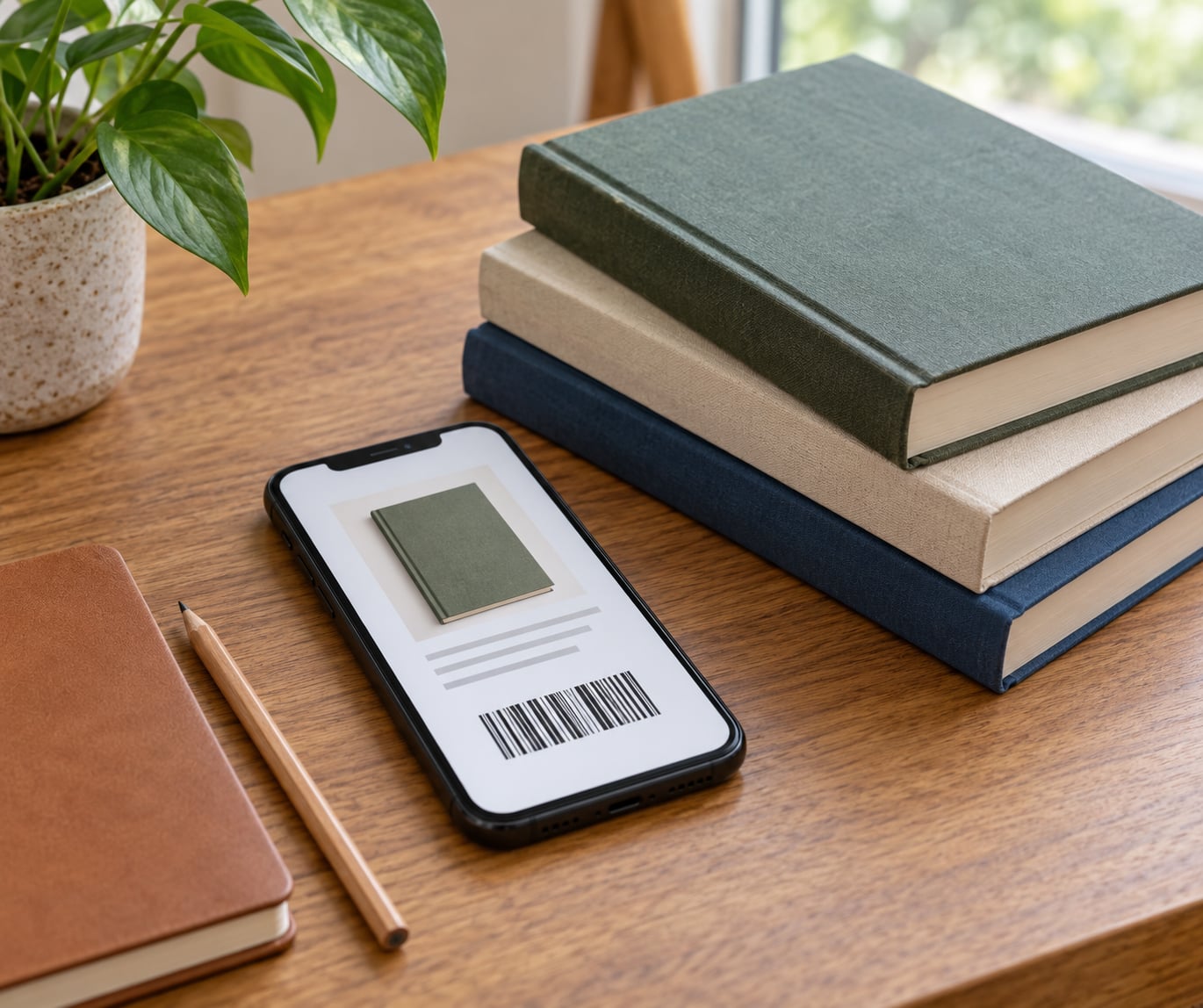
Cataloging a book collection on your phone means one thing: scanning the ISBN barcode on the back cover of each book so an app fills in the title, author, publisher, year and cover for you, then tagging the book with the shelf it sits on. It takes about five to ten seconds a book once you get the rhythm, and every scan after that is searchable.
I built my first catalog after buying the same paperback three times in one year. Three copies, one shelf, no idea which was which. The fix wasn’t a spreadsheet, which I tried and abandoned inside a week, it was the phone already in my pocket with a camera on it.
What you end up with is a running answer to two questions people ask constantly: do I already own this, and where is it right now?
Table of Contents
- What You Need
- Step-by-Step: How to Catalog a Book Collection on Your Phone
- Common Mistakes
- Frequently Asked Questions
- What is the best app for cataloging books on a phone?
- Can I scan book barcodes with my phone to create a catalog?
- How should I organize a large personal book collection?
- Do I need to record the ISBN for every book?
- Can I access my book catalog on more than one device?
- What information should I include for each book?
- Start with a small, consistent catalog
What You Need
Not much, which is the good part. Gather these five things before you start scanning, because deciding mid-shelf is how projects stall.
- A phone with a working camera. Any recent iPhone or Android handset does the job. The camera is the tool, not the app.
- One chosen cataloging app. Decide this before the first scan, not after entry 200. See the next section for how to pick.
- Camera permission. Grant it during setup. An app asking for camera access in the middle of a session is how a 40-minute run turns into a 10-minute run.
- A location naming scheme. Write down your scheme before scanning, something like Living room / Bookcase 2 / Shelf 3. Inventing it as you go guarantees three slightly different versions of the same shelf name.
- A backup destination. Cloud storage or a laptop folder. Monthly, not someday.
Optional: an AI shelf-scanner if you want to photograph a whole bookcase at once, and a Bluetooth barcode scanner if you’re past roughly 500 books and your hand is getting tired.
Step-by-Step: How to Catalog a Book Collection on Your Phone
1. Choose a catalog system
Pick the tool that matches how many books you have and what you want the catalog to do. The wrong tool is the single biggest reason people quit halfway.
Dedicated cataloging apps are built for physical collections. LibraryThing is generous for a small library at no cost, CLZ Books and Libib both focus on scanner-first inventory with shelf locations and cover views, and BookBuddy is a polished option that runs on iPhone and Mac only, which matters if you’re on Android. These handle barcode scanning, location fields and lending records out of the box.
A note app works if your collection is small and you only want a searchable list of titles. Search is good, location and lending tracking basically don’t exist, and you’ll be retyping a lot.
A spreadsheet is genuinely fine for a book club list or a small estate inventory, and it’s terrible as a home library of several hundred books. Users in the r/Libraries thread described exactly this: separate sheets per room, books cut and pasted between them, and a spreadsheet that becomes unmanageable right around the 100-book mark.
Goodreads and StoryGraph track what you want to read and what you finished. They’re not inventories. Neither one will reliably tell you that the copy of a book you finished in March is currently sitting in your sister’s kitchen.
My rule: if you own more than about 30 physical books, use a dedicated app. Below that, a note app is enough.
2. Create a consistent entry template
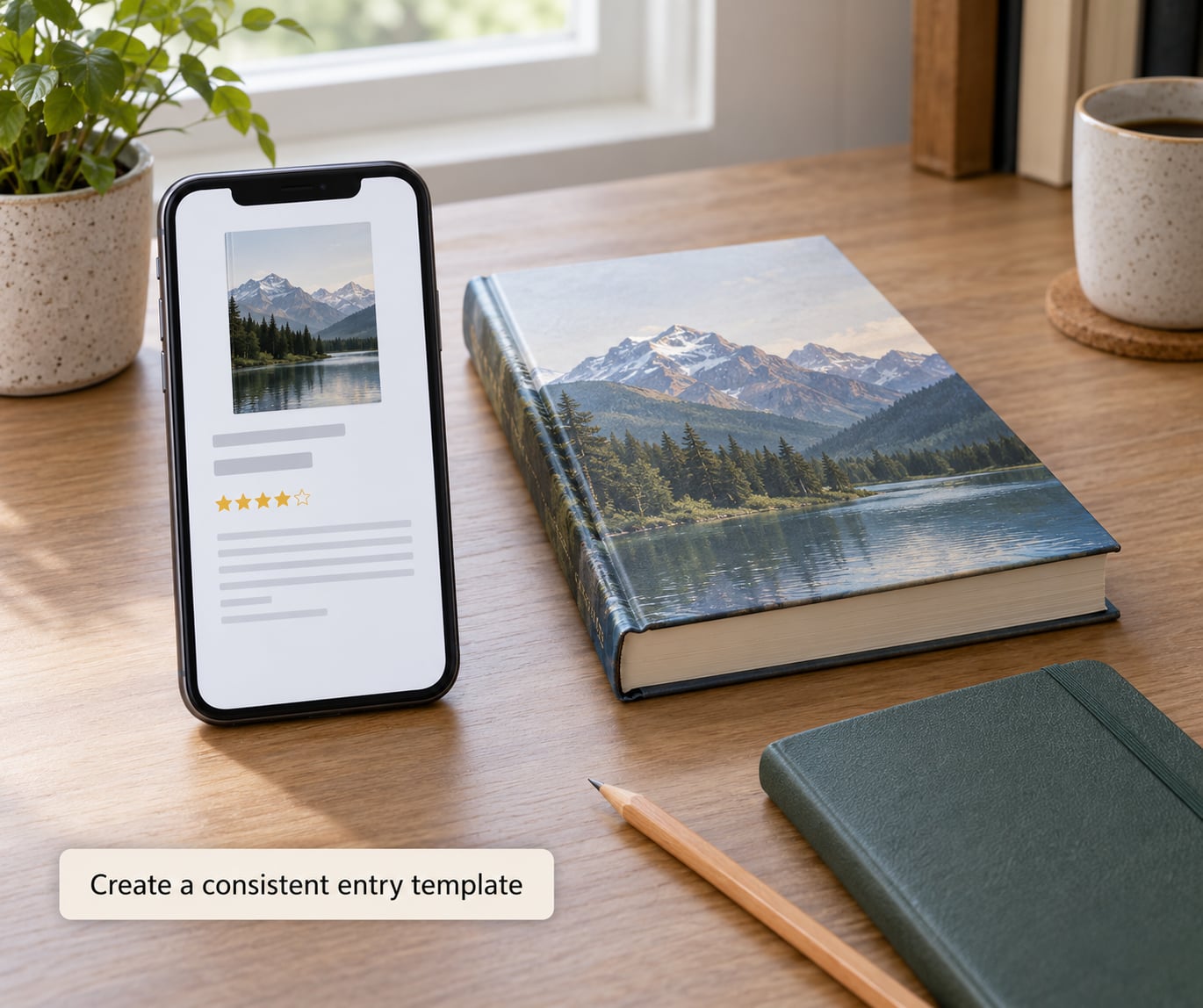
Before scanning anything, decide exactly which fields every entry gets. Write them down once. Consistency here is what makes the catalog searchable six months from now instead of a pile of half-filled rows.
The fields I’d record for every book:
- Title and author, pulled in automatically
- Edition or printing, which catches duplicates later
- Format: paperback, hardcover, ebook, audio, large print
- Publication year and publisher
- ISBN, scanned rather than typed
- Reading status: unread, reading, finished, abandoned
- Your rating and a one-line note
- Shelf and room location
The edition field is the one people skip and the one they wish they’d kept. The same title exists as a paperback and a hardcover, and only one of them is the one you own.
3. Scan or enter each book
Open the scanner inside your app, turn the book over, and point the camera at the barcode. On most editions it sits on the back cover near the bottom right corner, with the price printed under it on newer paperbacks.
Hold the phone about 15 to 20 cm away, roughly the length of a hand span. Closer and the camera won’t focus, further and the digits blur past recognition. The lookup itself takes two to three seconds.
That gives you a working pace of five to ten seconds per book once you’re warmed up, so a hundred books lands somewhere between ten and twenty minutes of actual scanning. Add the time to flip the book back, tag the shelf, and you’re looking at a realistic hour and a half per hundred, which is close to what a guide on this topic measured across a 1,200-book catalog.
ISBNs have been standardised as ISO 2108 since 1970, and nearly every book printed since has one. Older paperbacks may carry the older ISBN-10 format, and plenty of books have no ISBN at all. For those, search by title and author instead, then record what you can: author, publisher, approximate year, and a note saying edition unknown. Photograph the title page so you can identify it later.
Don’t let the unbarcoded handful stop you. It’s usually under five percent of a collection, and the workaround is search, not surrender.
Once the record populates, check that the cover image and publication year match the copy in your hand. Different editions get different years, and picking the wrong one quietly poisons your duplicate detection later.
4. Add reading and ownership details
The scan gives you bibliographic facts. Everything that makes the catalog useful to you comes next.
Location. Tag each book with its shelf as you save it, while you’re standing in front of that shelf. Retrofitting locations later means walking the house with a list. One r/Libraries user asked specifically for a tool that records which shelf in which room each book occupies, because knowing a book is in the house isn’t the same as knowing where.
Lending. If books leave your house, mark the borrower and the date when they go. Then you have a loans screen showing what’s still out, which ends the “I swear I gave that back” conversation permanently.
Condition and notes. Worth recording for first editions, signed copies, box sets and anything you’re documenting for insurance: dust jacket present, spine wear, provenance, where it came from.
Series position. For series readers, the volume number matters more than almost anything else on the record. Set it as its own field rather than burying it in a note, so Book 2 doesn’t end up filed under Book 3.
Quotes and progress. If you annotate or track reading, add a notes field now so you don’t have to restructure later.
5. Organize, search, and back up the catalog
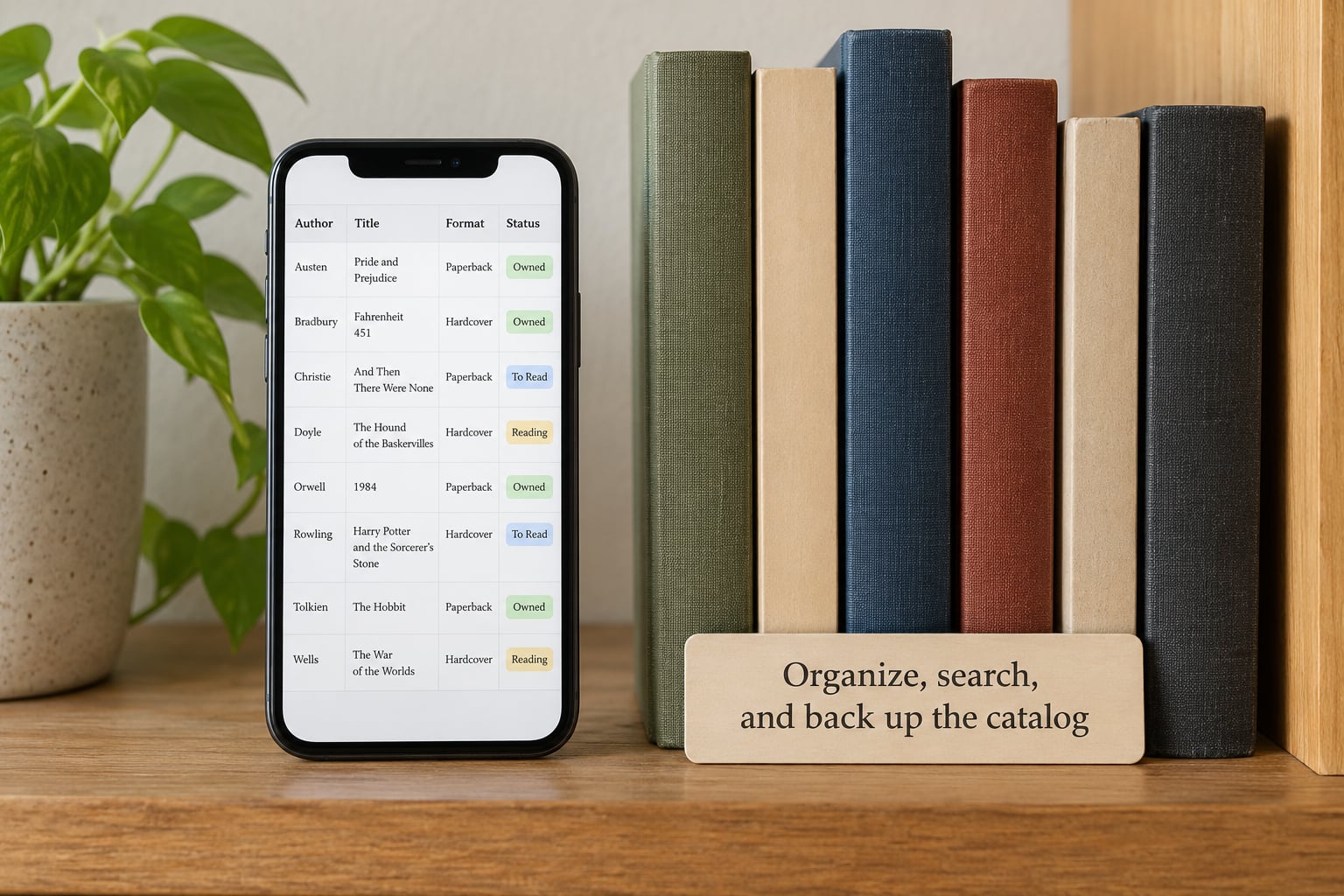
A catalog you can’t sort is just a list. Most apps let you sort by author, title, format, genre, date added or reading status, and most let you save a view as a shortcut.
Build two or three saved views you’ll actually use: everything on a given bookcase, everything currently lent out, and everything you haven’t read yet. Those three cover most of what people want from a catalog.
For moving furniture, look for a bulk location edit. When the bookcases get rearranged, you should be able to select a group of records and change their shelf in one action, not one book at a time. That’s a named request from library-minded users and not every app has it.
Then set up the export. Find the CSV or Excel export button in your app’s settings now, while your catalog is small, and export once a month to cloud storage. App shutdowns and account deletions do take people’s catalogs with them. One Facebook commenter described deleting an app, losing the account, then rebuilding the collection only to hit a paywall partway through. A monthly CSV costs you two minutes and makes that irrelevant.
If you ever need to move, a CSV is also how you get into a different app. Most tools accept an import file, and a few days of tidying column headings beats retyping a few hundred books.
Common Mistakes
Duplicate records for the same book. Happens when you scan a copy whose edition the app doesn’t already know. Before scanning, search by title and author; if a record exists, add your copy’s location to it rather than creating a second one.
Inconsistent edition details. The fix is the edition and format fields from the template, filled every time. Duplicate-buy checks are only as good as the metadata behind them.
Skipped identifiers. Books added by manual search often have no ISBN recorded, and six months on you can’t tell whether two entries are the same book. Record whatever identifier exists even when it’s partial.
Inconsistent category names. Science fiction, Sci-Fi and SF end up as three shelves. Fix your list once at the start and reuse it exactly. Same with location naming.
One device, no sync, no export. A catalog that lives only in an app’s account is one deleted account from gone. Sync to the cloud and export a CSV monthly.
Tagging locations after the fact. You will not remember. Tag as you scan.
Two habits worth keeping: a 20-minute session per shelf rather than a weekend marathon, and a quick scan-through whenever you finish a book so reading status stays honest.
Frequently Asked Questions
What is the best app for cataloging books on a phone?
There isn’t one winner, because the free tiers and platforms differ. For most home collections, LibraryThing is the most generous starting point, while CLZ Books and Libib are stronger for scanner-first inventory with shelf locations, cover views and lending records. BookBuddy is a good option but runs on iPhone and Mac only. Check the free book limit and whether it exports to CSV before committing a whole afternoon to scanning.
Can I scan book barcodes with my phone to create a catalog?
Yes. Every commercially published book carries an ISBN barcode, usually on the back cover near the bottom right. Open your cataloging app, tap the scanner, hold the phone about 15 to 20 cm from the barcode, and the app looks the number up and fills in the title, author, publisher, year and cover in two to three seconds. Books without a barcode are added by searching on title and author instead.
How should I organize a large personal book collection?
Work shelf by shelf rather than by format or author, and tag every book with its room, bookcase and shelf as you scan it. Sorting later by author or title is instant; reconstructing locations afterward means walking the house. Use saved views for the questions you ask most: what’s on a particular shelf, what’s lent out, what you haven’t read. For collections past 500 books, a Bluetooth barcode scanner saves the hand.
Do I need to record the ISBN for every book?
For most books, yes, because it’s the only field that reliably identifies a specific edition and makes duplicate detection work. The exception is older or unusual books with no ISBN at all, which is usually a small minority of a collection. For those, record the title, author, publisher and approximate year, note that the edition is unknown, and photograph the title page so you can identify the copy later.
Can I access my book catalog on more than one device?
Usually, but check before you start. Any app that stores your catalog in the cloud lets you sign in on a phone, tablet or laptop and see the same records, which matters if you scan at home and check the list while shopping. A few apps tie the catalog to one device or offer sync only on a paid tier. Export a CSV monthly regardless, so you’re never dependent on one app staying online.
What information should I include for each book?
At minimum: title, author, format, edition, publication year and shelf location. ISBN comes free from the barcode scan. Very useful additions are reading status, your rating, a one-line note, the series and volume number, and for collectors the condition and provenance. Optional extras like purchase date, dust jacket condition or a favorite quote only matter if you’ll actually look at them later.
Start with a small, consistent catalog
Do this first: pick one bookcase, scan its twenty books with the same fields filled in for every one, and tag the shelf location on each before you move on. A small catalog done consistently teaches you the workflow; a large one done loosely teaches you nothing.
The value isn’t the app you pick. It’s that six months from now, searching your phone for a title tells you whether you own it, which copy, and which shelf it’s on. Start with one shelf this week and add the next one when it’s convenient.